


LLMs can be simultaneously godlike and immeasurably dumb, in one contradictory package. But, more than anything, they’re scary. Just as the hobgoblin of aspiring writers’ minds is a blank page, the hobgoblin of aspiring researchers is learning how to use an LLM. Not “effectively,” not “well,” mind you – just use it. Judge this by the overabundance of research articles touting future research agendas, conceptual frameworks, “dark sides,” pearls of wisdom, and assorted ramblings about AI, but the dearth of articles discussing -concretely- how to practically use LLMs.
Wouldn’t it be swell to learn how to deploy a local LLM that we could ask about… most anything, research or otherwise? Yes, and I can think of a few reasons why:
Lack of connectivity: There may be situations (e.g., a flight) when using any of the Internet-based LLMs is not feasible.
Privacy: Research (and teaching) often requires opening and/or analyzing potentially private data, and sharing this data with LLM providers seems like a pretty bad idea.
Versatility: Installing and using a local LLM means having the ability to decide which specific LLM to use and from which company.
Iteration: Often, data analysis requires iteration over many rows of data – for example, computing the sentiment of a dataset of online reviews, or cleaning a dataset. While slower than Internet-based counterparts, local deployment (with a bit of Python programming) provides full control over how the LLM iterates over multiple observations and what it does with each.
But a secondary, yet nagging, fear, is compute. The big C. Often, we think our computers are too slow, our resources too thin, and submit to paying OpenAI through the nose for API calls.
Enough! Here’s a thought: your potato computer is better than you give it credit for. Your hardware can pull it off. Can it? Can we effectively transform a potato into an oracular potato that runs LLMs for research… or will our power supplies and motherboards fry?
Can we do it with AI? We’ll try to demystify the process of deploying LLMs locally in a multi-part post, covering Mac and Windows. We will:
Learn how to deploy a reasonably accurate oracular potato: a less-than-stellar, potato Windows or Mac computer running a Qwen LLM locally. We’ll use LMStudio, an easy-to-use, almost “plug and play” application.
Learn how to use Python (virtual environment setup and programming) to use an LLM without any user interface. We’ll use the Ollama application for further learning.
Analyze data with LLMs using FOR cycles…. slowly 🦥. Here, we won’t use either LMStudio or Ollama, but a custom deployment for maximum privacy and flexibility.
Project overview
Deploy an oracular potato, Part 1
🗒️ Topics: Research; text genAI; Qwen; LMStudio.
🔨 Tools: LMStudio; various Qwen LLMs.
💸 Cost: $0 (you already have a potato computer, right?)
⌛ Time to completion: Around one hour (mostly spent downloading files).
Napkin planning
Let’s think before we tinker. Planning on a napkin, along with stating our goals, is always useful.
Goal: Locally deploy a reasonably accurate LLM on a less-than-reasonable computer.
Accuracy goal: High – the LLM should be accurate enough to be useful.
Creativity goal: Medium – this guide focuses on verifiable, technical prompts. You can also experiment with using a local LLM for creative work.
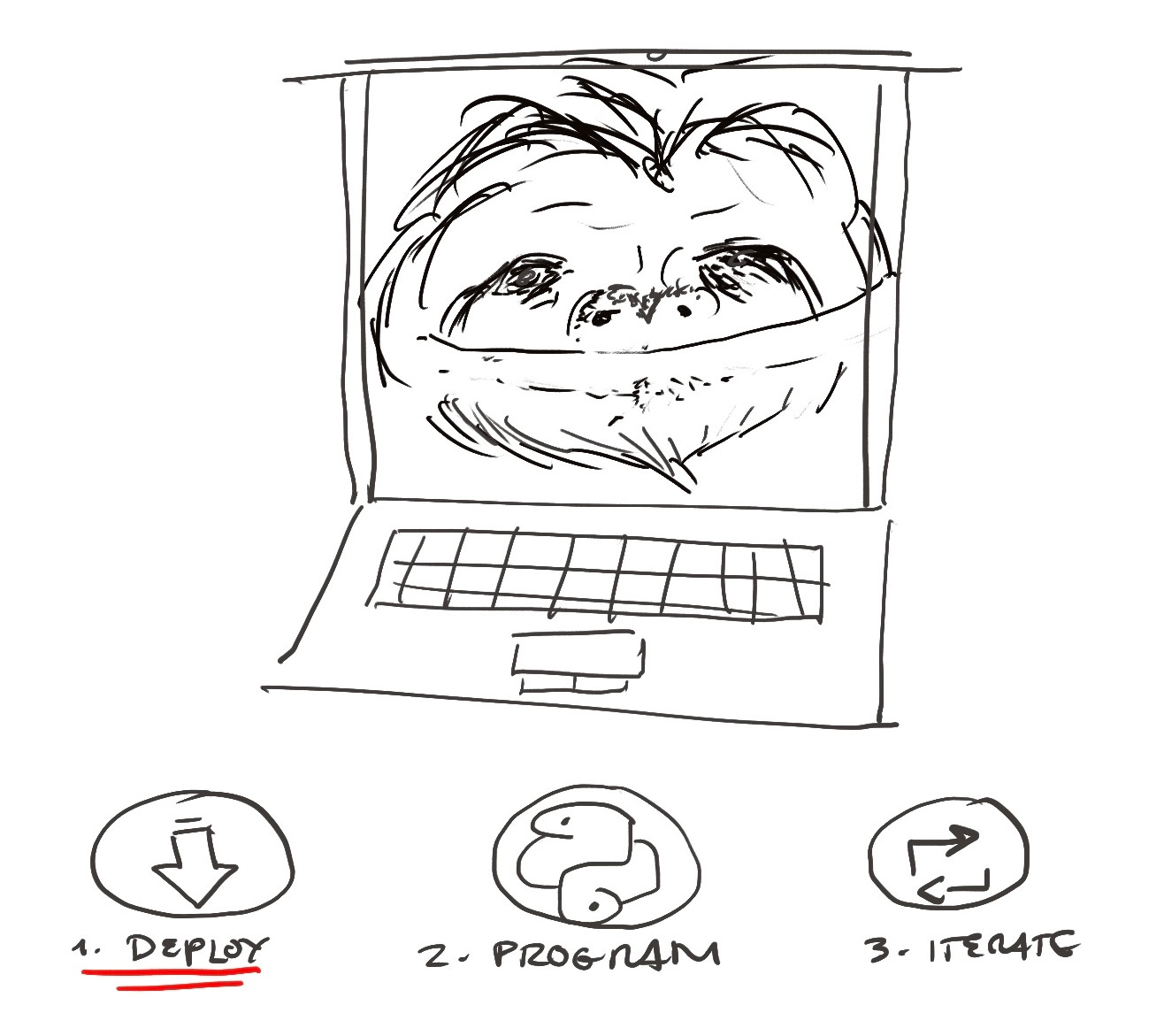
Here, the napkin emphasizes a series of steps to assemble and use an oracular potato. It will be slow -oh yes, it will- but it will be accurate, a benevolent, zen-like LLM sloth taking his sweet time to eventually throw a dart and hit bullseye. The process will take some explanation (hence the multi-part series), but, overall, the time investment will pay off in spades.
Doing It With AI
Potatoes
Let “potato” be a less-than-ideal computer not generally thought of as being capable of running LLMs. Note that I am constrained to the devices I own. Therefore, my potatoes will be:
Windows: A laptop with a 4-core, 2.8 GHz AMD Ryzen 5 7520U processor, integrated graphics, 16GB of RAM, and a 256GB hard drive.
Mac: A MacBook Air with an M2 processor, 8 GB of RAM, and a 256GB hard drive.
Linux (Mint): A laptop with a 4-core, 1.6 GHz Intel Core i5-8250U processor, integrated graphics, 20GB of RAM, and a 1TB hard drive.
As can be seen, the Windows computer is quite the potato: while not a Chromebook, it scores quite low on CPUBenchmark compared to an Intel Ultra 9 285K, one of the faster consumer-grade desktop processors at the moment. Its saving grace is having 16GB of RAM. The Mac, on the other hand, has less RAM, but a better processor (which is, nevertheless, three generations old).
(Of course, the Linux is the true potato here, but I will only discuss it very briefly, for comparison purposes).
I have successfully transformed each laptop into an oracular potato, though those are the only potatoes I have, leaving little room for experimentation. So, as an educated guess, I believe that the minimum requirements for an oracular potato are:
Windows: 12GB of RAM and a processor as capable as a Core i5-8250U (works, but very slow) or AMD Ryzen 5 7520U (works reasonably well!).
Mac: an M2 or (maybe) M1 processor with 8GB of RAM.
In either case, a 256GB hard drive should do fine, assuming you have enough free space. Note that neither case requires a dedicated graphics card (e.g., an RTX 4090 or RTX 5090), which would be the resource of choice for a very powerful local setup. But we’re talking potatoes here, so let’s move on.
The setup
Regardless of your operating system (Windows, Mac, or Linux), our first experience using LLMs locally will be using LMStudio. LMStudio is an easy yet surprisingly customizable program to run LLMs locally. It has a very large pool of models to download and use as well. The disadvantage is that LMStudio is closed-source, which would add more security and transparency to the program. But, overall, it’s excellent, and I use it frequently to run LLMs.
To download LMStudio, visit their website and download the program. After installation, you’ll have to make a few decisions:
User level: State that you’re a “Power User” so that the interface offers a few extra tabs and tools.
Your first model: First, disable the option “Enable local LLM service on login”, and then, click Skip. You can download a model suitable for your potato later.
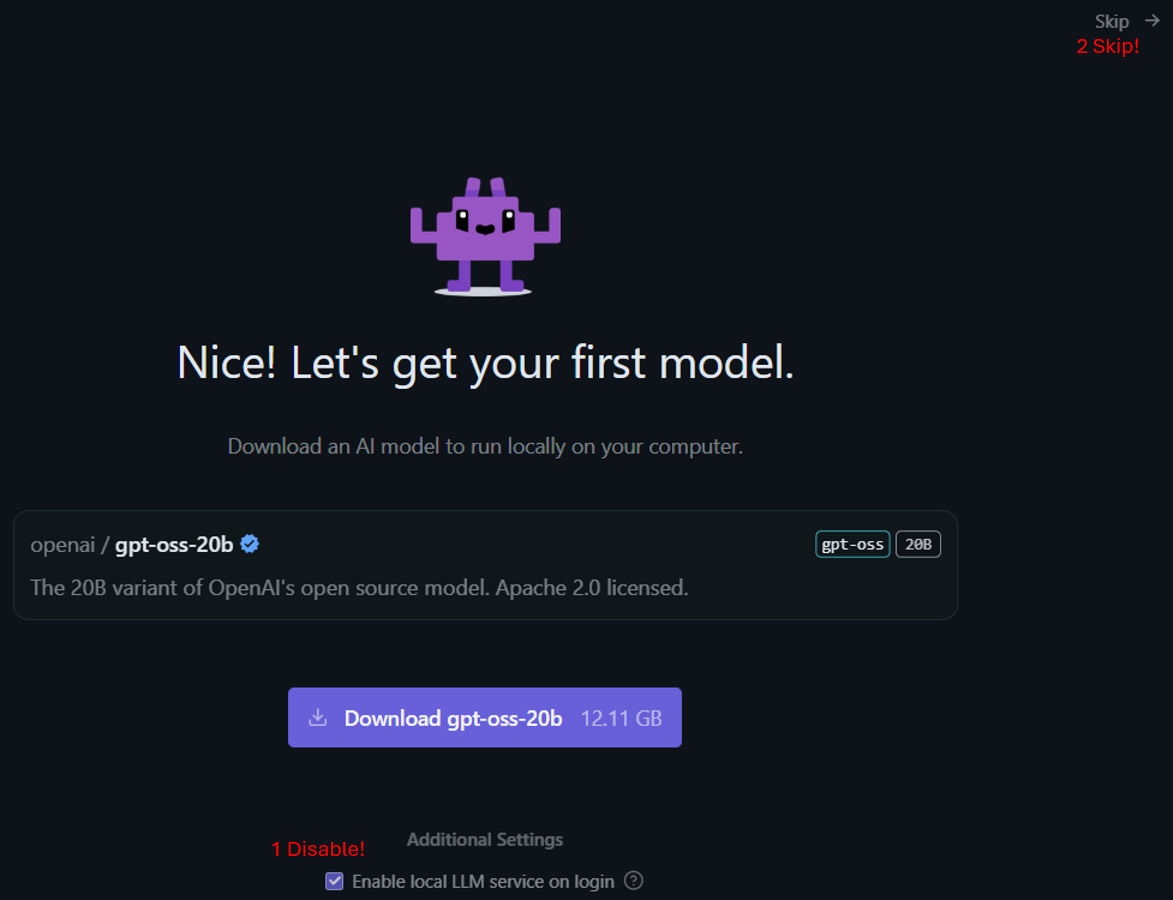
That’s… pretty much it! You will be greeted with a window featuring several icons on the left, and a huge chat window. Now we can begin playing with some LLMs! (For a quick primer on what these models are, read this introduction from AWS.)
Model search and installation
The next step is to search for a suitable LLM. I would recommend two options: either Qwen2.5-0.5B-Instruct or Qwen3-0.6B. These models are quite small and work well (if your computer is better, you can use better models, but first experiment with these).
There are several factors to account for by simply reading the model names:
Model name: There are many model providers out there: OpenAI, Alibaba, Deepseek, Google, and others. Each of their model families has a name. I chose to use the Qwen family of models, developed by Alibaba, because they’re small and easy to use.
Model version: As AI technologies evolve, model providers typically update their model portfolio. The first number you see (Qwen2.5, Qwen3) indicates the model version. While a higher version is usually associated with higher precision in analytical tasks, qualitatively, the models can vary widely, with some users strongly preferring older models, especially for personal support and creative work.
Parameters: Each model has a parameter structure that can range from fewer than a billion to hundreds of billions of parameters. More parameters generally result in more precise handling of user prompts, but they also mean a larger model size. This is important because your potato is limited by the amount of RAM it has to run these models. I won’t cover hyperparameters, which govern how the LLM responds to a prompt (e.g., temperature, top-k) and can be changed in LMStudio’s settings – for a primer, check this document from IBM.
Specialty: Certain models are specialized for different tasks. For example, the Qwen-Image-Edit model is specifically tailored to edit images. In our case, the Qwen2.5-0.5B-Instruct model was specifically designed to handle user prompts, whereas the Qwen3-0.6B model is more general. In fact, if you search for the latter model in the Qwen3 model repository, you will find no Instruct version of it at all! So, when selecting a model, you might want to first determine whether there are any specialty models that might work best for the task at hand.
In LMStudio, the red magnifying glass in the left panel can be used to search for models. Click it. Note that the list begins with “Staff picks” – I would stick to these unless they are not available for a specific model. Furthermore, the option “GGUF” is ticked. GGUF is a faster model format than standard models, which very slightly sacrifices accuracy (there are also Mac-specific MLX models). Since we have a potato, let’s keep the GGUF option enabled.

Search for “Qwen3-0.6B” in the search box. There are a lot of different models (none is a staff pick) – stick to the provider’s (in this case, Qwen). A good indicator of which model to download is also the number of downloads and likes a model has. Select “Qwen3-0.6B-GGUF” by Qwen, and download the model. Afterwards, a confirmation window appears.

Close the window.
The model has been downloaded, but it now needs to be loaded into memory to run. To do this, click “Select a model to load” at the top of the screen. Simply pick the model, and you’re ready to go!
Prompting
At this point, you can start prompting the model. However, I generally use the following prompt when I first use any model:
Briefly describe your capabilities in no more than three paragraphs.
This is the response I got:
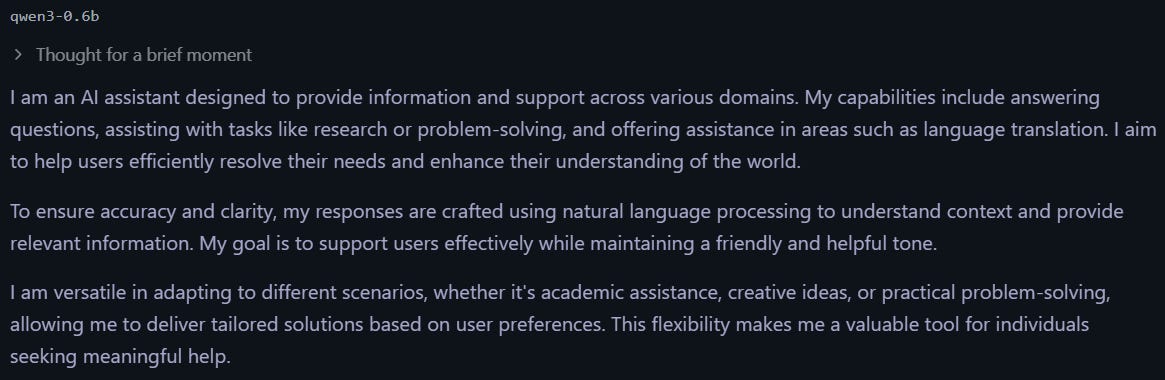
Note that the model engages in “thinking” for a while. In a potato, this can be a LONG while. So, how do we disable thinking? Some models include a button that allows thinking to be disabled, which is at the bottom of the prompt box:

However, the Qwen3-0.6B-GGUF model apparently does not offer that option. The keyword here is “apparently:” by reading the model’s description in the Qwen repository, we learn that by preceding a prompt with the term “/no_think”, thinking is disabled! This varies by provider, model family, and even specific model, and so getting into the habit of reading a model’s “fine print” is always useful. Try running the above prompt, disabling thinking, and compare the output and speed relative to when thinking is enabled.
A local LLM can be used for anything – I generally use it to learn new things about coding, decipher abstruse Windows or Linux terminal commands, etc. This can be done (reasonably) quickly, safely, and even offline (test this by disabling your Internet connection).
For a more useful example, suppose you want to learn how to write a FOR loop in Python. Open a new chat window by clicking the + button in the “Chats” pane (generally, do this every time you want to prompt something unrelated to your previous prompt). Here, you might use a prompt like
Briefly show me how a FOR loop is structured in Python /no_think
The output follows:
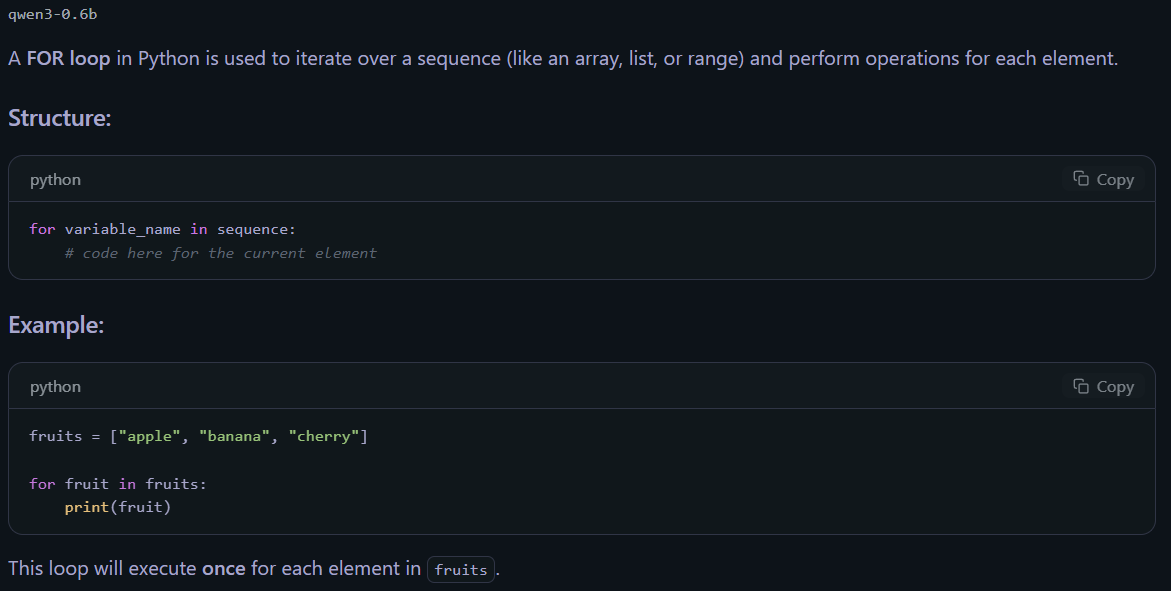
Behold, an oracular potato!!
You could also write
Briefly teach to me what a FOR loop is, and how to use FOR cycles in Python. Explain this step by step, so that I can learn how to use Python better. /no_think
I won’t include the resulting output here, but the explanation is much longer, comprehensive, and useful.
Also, note that LMStudio lets you attach files alongside a text prompt. Feel free to experiment!
When you are done, click “Eject” in the model bar at the top of LMStudio to remove the model from memory.
Model speed and quantization
Some models include different versions built on different quantization levels, which impact speed (and therefore are important when dealing with a potato).
To see this in action, in the Model search tab (the magnifying glass icon on the left pane), search for “Qwen3 1.7B”. Notice there’s a purple “staff pick” model. Upon selecting it, click “Download Options”.
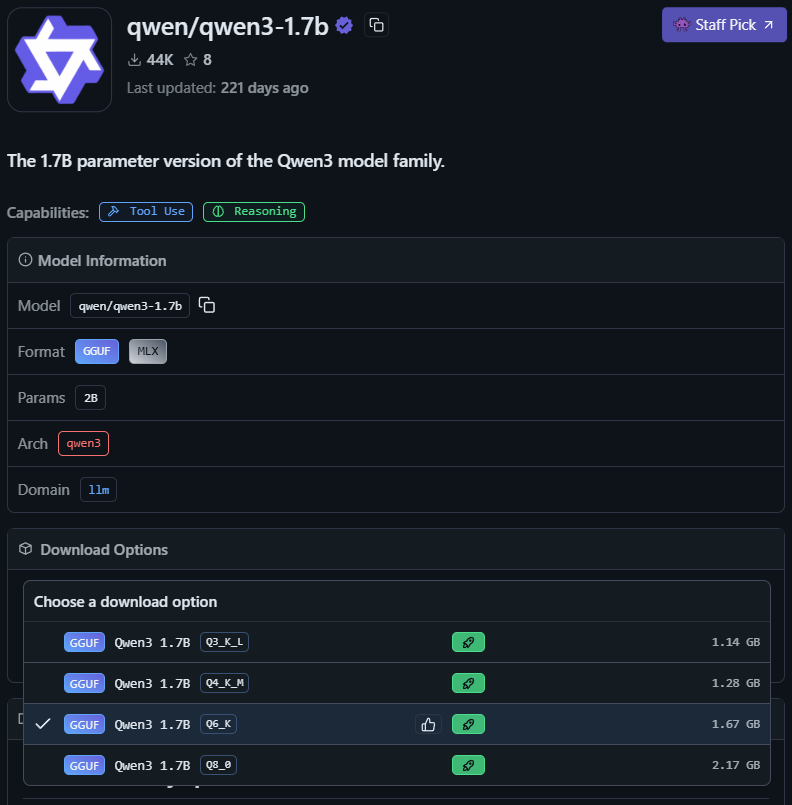
These options (e.g., Q6_K, Q8_0) denote the same model but vary in quantization, which improves efficiency and memory usage. Models such as FP32 and FP16 are very high-precision, whereas models such as Q6 and Q4 have lower precision, although they generally preserve most of the model’s behavior. For this reason, feel free to experiment with different models! LMStudio will auto-select a recommended model.
How fast, or slow, might these models be? When you run a prompt in LMStudio, you will see a summary at the end of the output, indicating the number of tokens in your output and the tokens per second. The faster the tokens/second, the faster the model ran.
Are there any gains in speed from quantization? The tokens/second measure can help us assess that. I conducted a little experiment on my Linux potato. Using the Qwen3 1.7B model noted above, I ran the second Python FOR loop prompt, with and without thinking, and using the laptop’s battery power. These were the results.

As can be seen, there is some improvement in using models with different quantization (and a noticeable drop when Thinking is enabled). But the highest efficiency gains can be achieved by using a smaller model – for example, on the same potato, the Qwen-2.5-0.5B-Instruct results in runs up to 8.64 tokens/second, more than twice as fast as the 1.7B model. However, I would advise caution when using older, faster models, as they can be less precise.
Did We Do It?
Today, we set up a local LLM using LMStudio, and ran it successfully (even offline!) on a potato computer. This is great for privacy reasons, as well as for accessibility – yes, even your potato can run LLM models… slowly!
In the next installment, I’ll cover how to use Ollama to invoke these models in Python, so you can easily write scripts that might require you to repetitively send prompts to the LLM.
Should you do this with AI?
Since today’s article focused on installing LLMs, you might think this section might not exist. I thought the same. So, perhaps this section might instead ask: should you do AI with a potato? In my view, the answer is a resounding yes. In the words of my faithful AI assistant, DIWA: “Running AI locally won’t make it smarter.
It might make you slower — and that’s the point.“

Think about today’s LLM usage. A recent report claims that AI usage has resulted in the same CO2 emissions as New York City. The data center boom continues apace, using as much water and electricity as tens of thousands of homes and causing computer part prices to skyrocket, which will eventually impact the prices of most electronics. All the while, the powers that be hunger for more.
The destructive force that AI can be means that sending a simple chat request to ChatGPT or Gemini comes with a pang of guilt - especially when, even in Google, one cannot even opt out of generating AI results! In this environment, perhaps using oracular potatoes is a way to preserve resources - after all, there are a lot of potatoes lying about households, offices, and schools. Tapping into these dormant resources could be useful for research and learning. Deploying an oracular potato also preserves our identity and privacy, without all of it being potentially siphoned by AI companies.
So, when I want to do it with AI, I’ll make an effort to ask it (most of the time) on my potato - a slow and starchy act of rebellion!
(Stay tuned for Part 2: using Ollama and Python programming.)
